PicSee’s “Tag” feature helps you clearly categorize the purpose of a short link, distribution channel, campaign details, and more, making it easier to manage, search, and collaborate across a large number of links. You can create tags in advance or add them instantly when editing a short link.
Create Tags
You can create tags in two ways:
Create in advance under “Tracking Settings”
- Click the account menu at the top right.
- Go to “Settings” and scroll down to “Tracking Settings.”
- Enter a name in the “Tags” field at the bottom of the page to add a new tag.
Create instantly while editing a short link
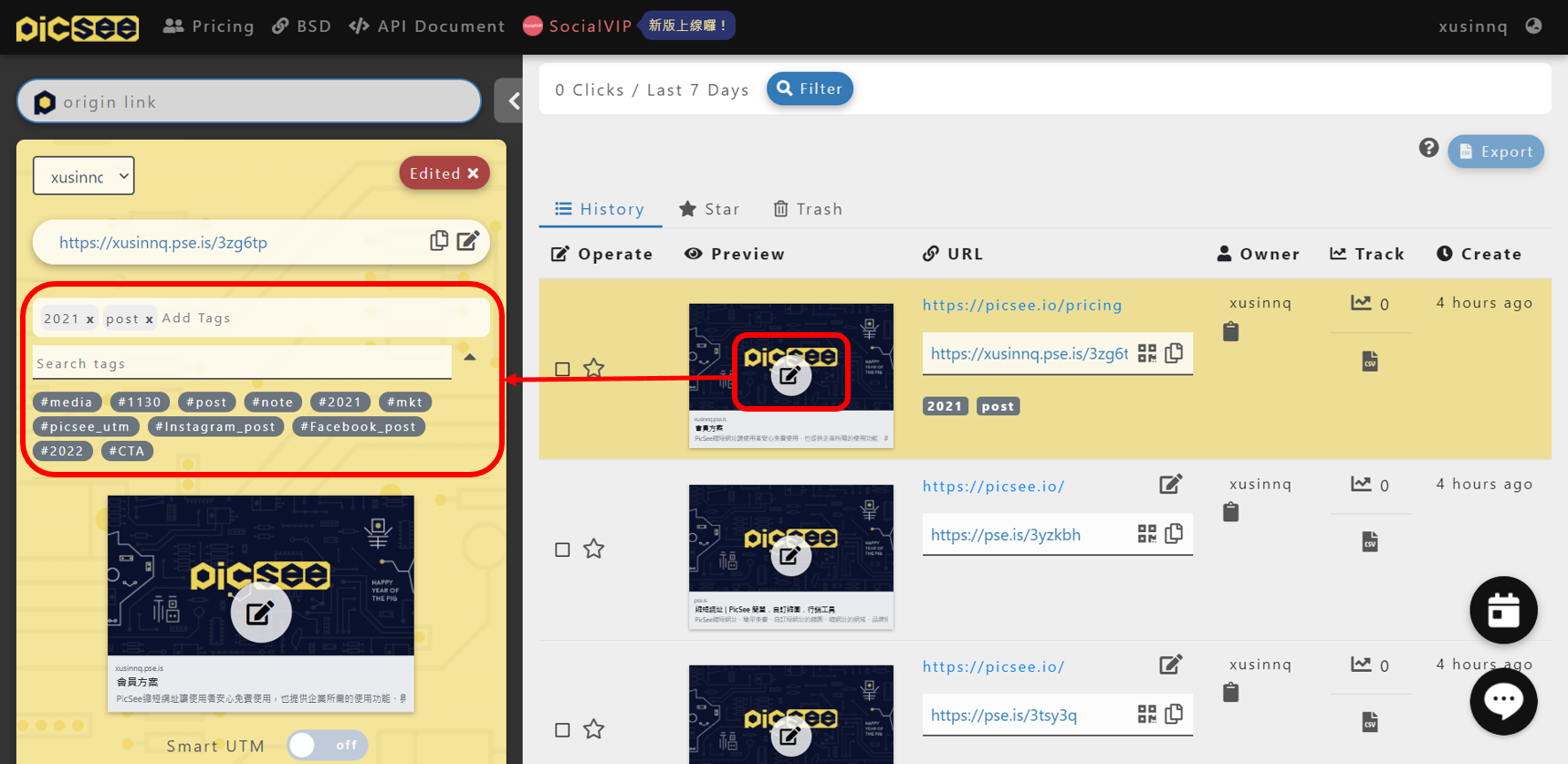
Whether you are on the “Post-shortening Settings” page or editing from the “Link Records” page, you can type a name in the “Add Tag” field. If the tag does not exist, it will be created immediately.
Add Tags to a Short Link
- Open the editing page of the short link (after shortening or via the Links page).
- Enter or select a tag name in the “Add Tag” field.
- Once added, the tag will appear in the record of that short link.
Filter Short Links by Tag
To quickly view short links in the same category, you can filter them using the following methods:
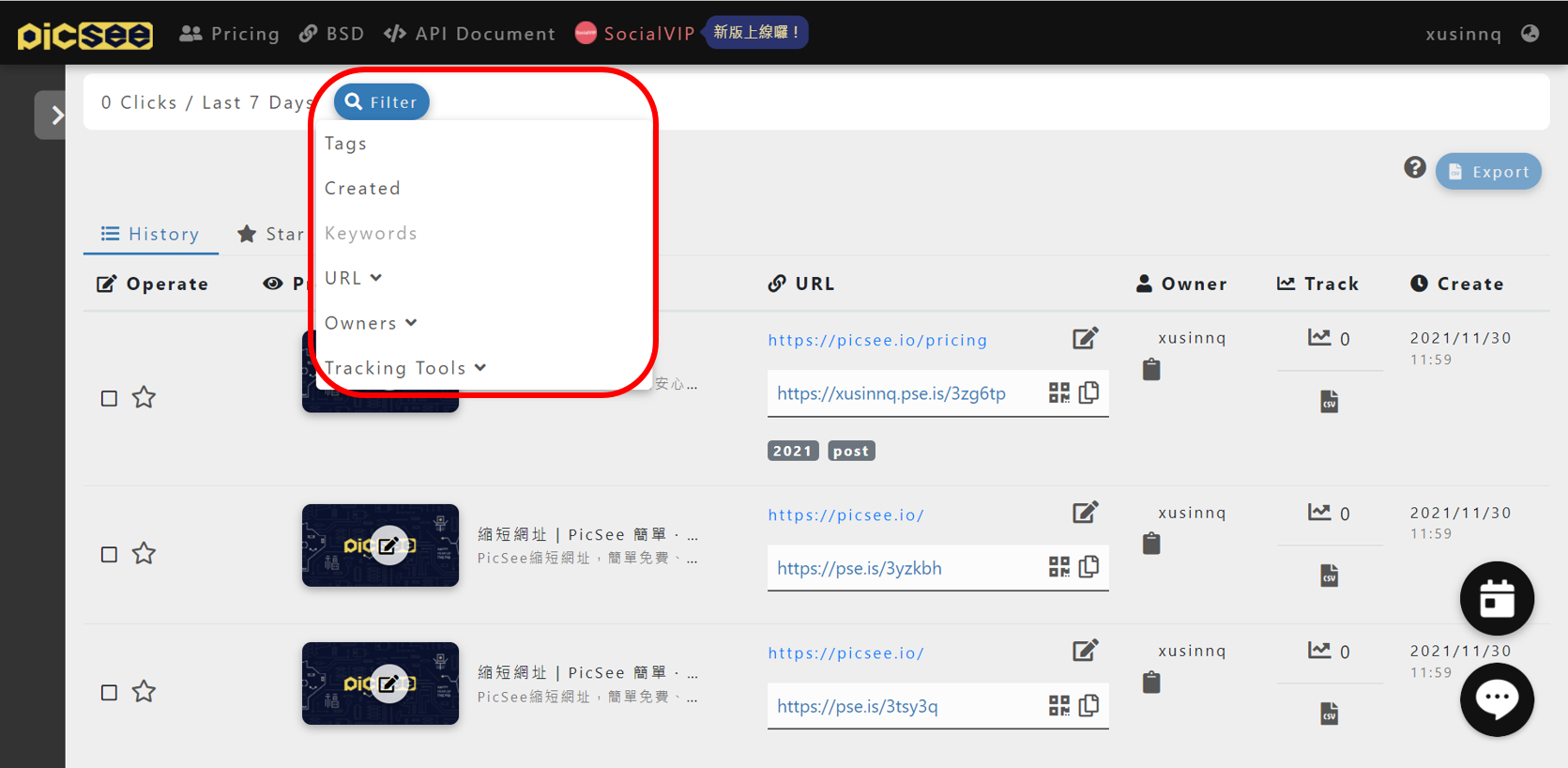
- Click any tag on the Link Records page to display all short links using that tag.
- Click the “Filter” button and select the tag you want to view.
After filtering, the total clicks for the selected tag will be shown at the top left of the website — perfect for analyzing campaign performance. For more advanced search and filtering features, please refer to:
Search & Filter Short Links
Delete Tags
- Click the account menu at the top right.
- Go to “Settings” and open the “Tracking Settings” tab at the bottom.
- Click the “X” next to the tag in the “Tags” section to delete it.
Important: Deleted tags cannot be restored. Please proceed with caution.
Usage Limits
- The number of tags you can create depends on your pricing plan.
- Tag names can contain up to approximately 30 characters.
- English letters are automatically converted to uppercase. Uppercase and lowercase are treated as the same tag.
- Tags cannot contain spaces (use underscores or hyphens if separation is needed).
Notes
If you need more tags, please refer to:
Additional Purchase Options.