Getting Started with UTMTO
Please refer to the tutorial video first:Install and Use the Extension
Go to the https://picsee.io/apps/utmto page, scroll to the bottom and click "Free Installation → Create a New Google Sheet → Extensions at the top → UTM.TO → New Template" to start creating your batch short links!After entering the original URL in the Original Link field, the short link will be generated in the Short Link field.
- PICSEE_UTM(): Provides 5 optional UTM parameters. Once filled in, enter the PICSEE_UTM function and select the UTM fields you want to populate to include UTM parameters in your short link.
- PICSEE_CLICK(): Enter this function to query the click performance of a short link in real time.
- PICSEE_TITLE(): Enter this function to retrieve the title of the original URL.
Connect Your PicSee Account
Click "Extensions → UTM.TO → Connect to PicSee" in Google Sheets, and you'll be able to see the short links generated in the sheet under "Bulk Records" in your PicSee account. After connecting the sheet to your PicSee account, you can also log in to the PicSee website to view link click analytics under "Link Records > Bulk Records".FAQ
UTMTO Shows Not a Valid URL
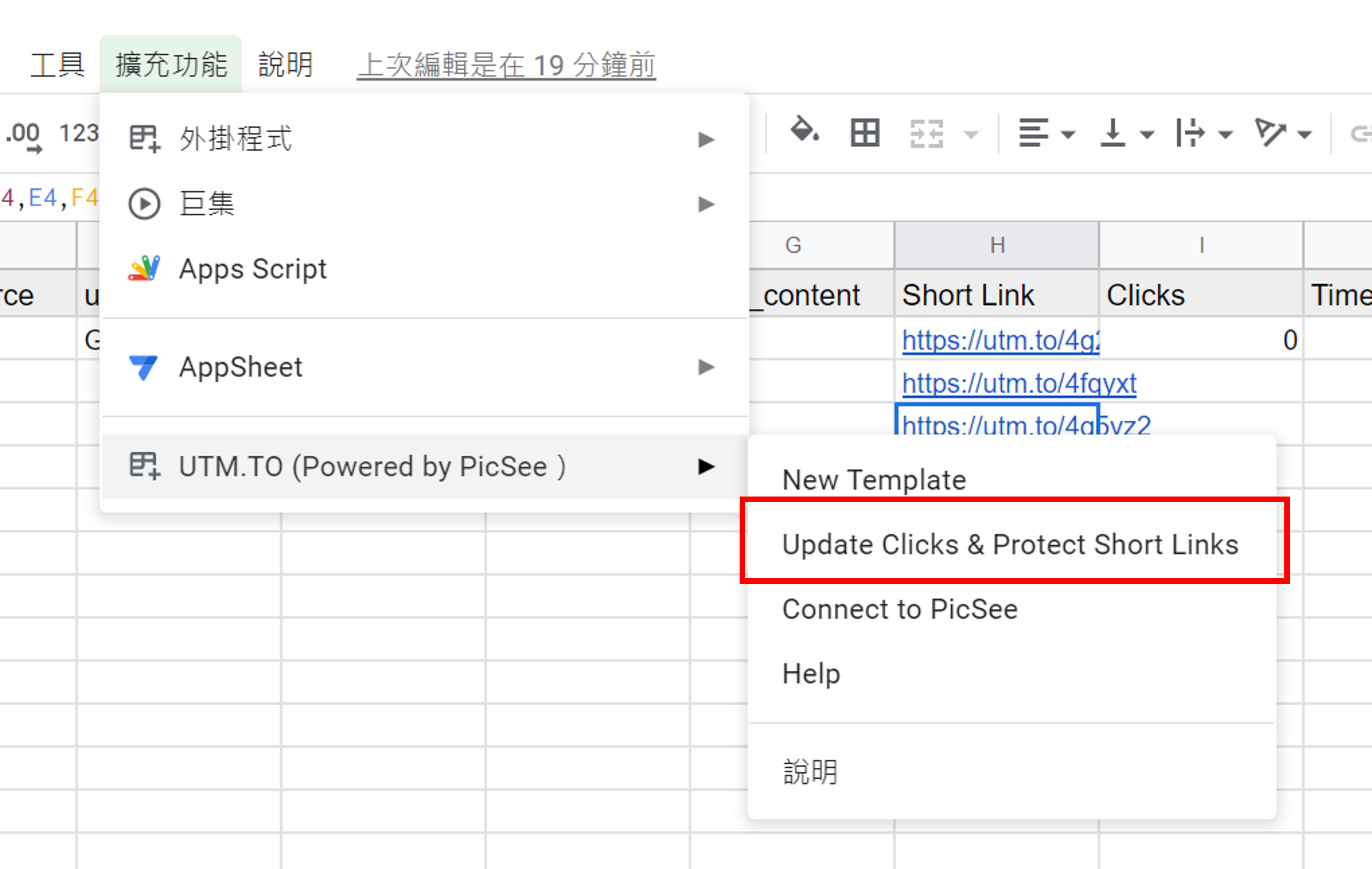
UTMTO is limited to generating 100 short links per Google Sheet every 24 hours. Both shortening a link and refreshing a link's click count once each count toward this 100-link limit. You can resolve this by creating a new sheet or adding a new tab within the same spreadsheet.After generating short links with Google Sheets, remember to click "Update Clicks & Protect Short Links" to convert the short links from formulas to plain text. This prevents the formulas from being re-executed every time the sheet is opened (which Google Sheets does automatically), which would exceed the 100 short links per sheet limit.